
FIS box for integrating publication lists from the Research Information System
Table of contents
TU Dresden’s Research Information System (abbreviated FIS, from the German Forschungsinformationssystem) is the leading system for research information, including publications. The FIS is the central tool for research reporting both within TU Dresden and externally. A separate FIS box is available in the WebCMS for content from the current FIS.
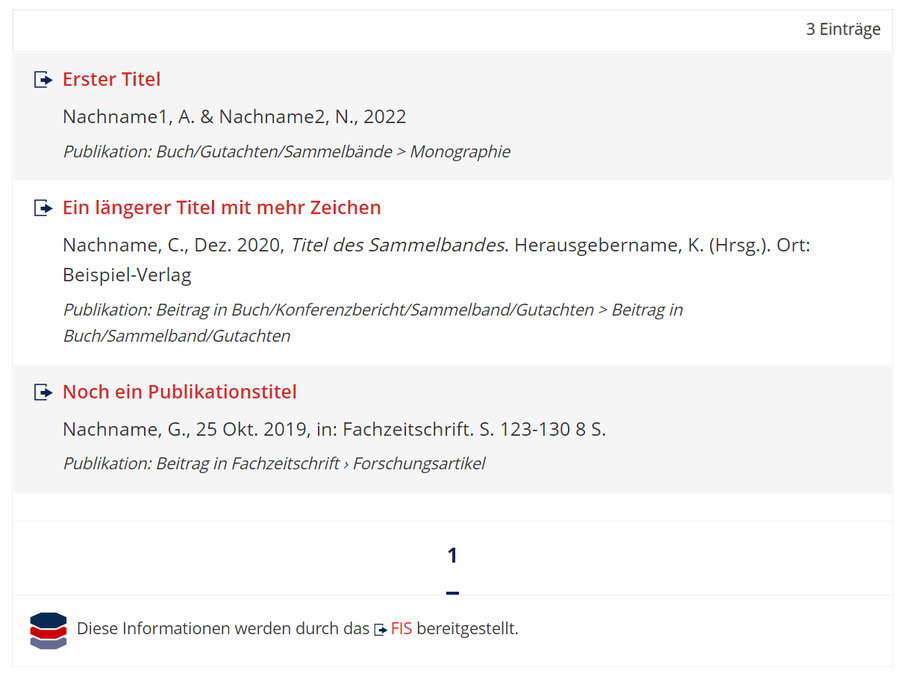
Sample FIS box
The FIS-Box allows you to embed and display research achievements of a person or organizational unit published in the FIS on TUD websites. At the moment, you can choose between publications or activities, such as lectures and memberships. You can also limit the selection to certain publication or activity types. Once you embed the FIS box in WebCMS, it will update automatically, meaning that the information displayed always reflects what is entered in the FIS.
Please exchange embed boxes with publication and activity lists from the old FIS system for the new ones as soon as possible. They will no longer be updated!
You will be able to add research projects to the current research information system in the future. However, this function is not yet available. Until then, you can display your projects on your website using the embed boxes for content from the old research information system.
The following explains how to use the FIS box. To use the box, you must have already entered your research information in the current research information system (FIS) and set the visibility to “public.” Further information on maintaining research activities in the FIS can be found in the manual for the research information system.
Embedding a publication/activity list on a webpage via the FIS box
To embed and display publication or activity lists on a website, you first have to set up an FIS box for the person or organization in question in the resource folder. Then, the box can be inserted on as many content pages, news items and FAQ entries as you would like.
Setting up an FIS box
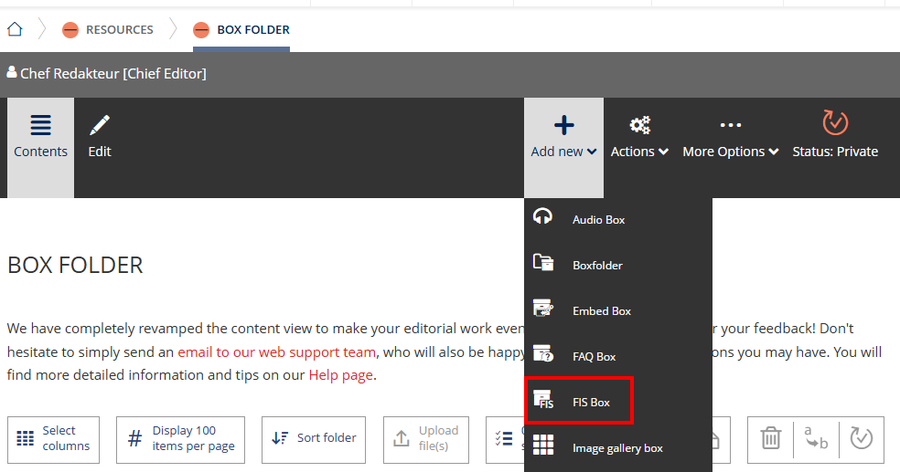
Setting up an FIS box
To set up a new FIS box, enter the “contents” view and switch to the “resources” folder, then select the “boxes” subfolder. Click on the “add new” menu and select “FIS box.”
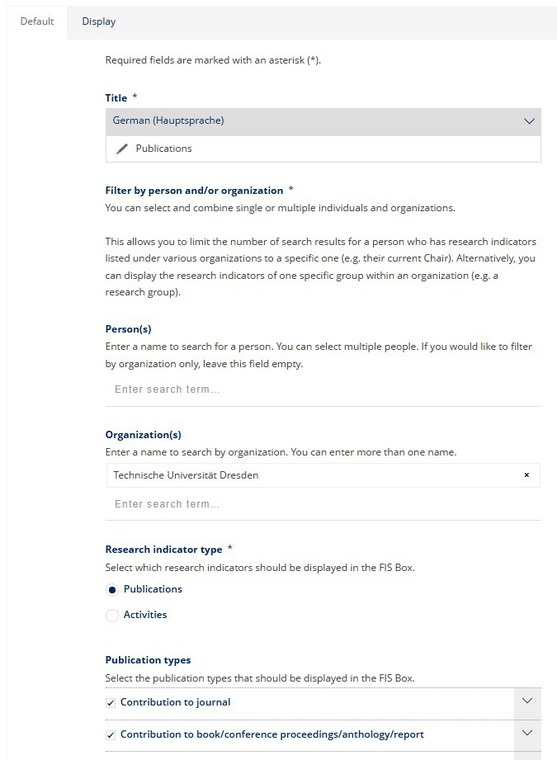
Editing page of the new FIS box
In the “Person(s)” and “Organization(s)” fields, you can search for the entries to which the publications in the FIS correspond. Simply type the appropriate name into the search field and select the correct entry from the list of suggestions displayed. You can select more than one item and combine both fields. This allows you, for example, to limit the number of hits for a person who has publications associated with different organizations to a specific one (e.g. their current Chair). Alternatively, you can display the publications of one specific group within an organization (e.g. a research group).
You can choose from publications or activities as research types. Modify the pre-selection for the research types to be displayed as needed by checking the corresponding boxes in front of the desired rows. Click on an arrow to the right of a row to display the sub-categories.
Depending on your selection, there are additional settings available: for example, you may opt to display peer-reviewed publications only, or only presentations for which you have been invited. You can also choose to display either all activities, or just completed or past ones.
The display can also be limited to a certain time period. You can find additional display options under the “Display” tab.
The process is finished once you click “Save” and you will be redirected to a preview of your FIS box.
Inserting your FIS box as page content
FIS boxes can be added to TUD content pages, news items and FAQ entries.
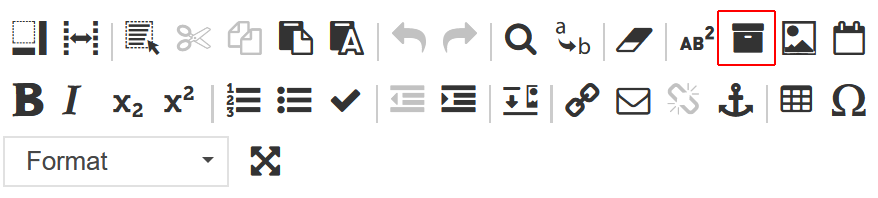
Editing mode toolbar, insert box
To do so, enter the editing mode of the object you would like to modify. In the editing mode, select the tool “insert box” (see screenshot) and select your FIS box from the “browse server” window. If necessary, navigate on the left side to another resource folder or use the search function above the content view to find the right box. Select the box by the title. You don’t need to adjust any other settings. FIS boxes are always inserted in full page width. Click “Save.”
Exchanging embedded lists from the old FIS
Content from the old FIS (https://forschungsinfo.tu-dresden.de) was embedded via an embed box. To embed content from the current FIS (https://fis.tu-dresden.de), we have created a separate FIS box. At the moment, it can display publications or activities. To ensure that the lists on your web pages continue to be updated, you will have to exchange the old embed boxes for a new FIS box.
Follow these steps:
- Finding the old embed boxes
- Setting up new FIS boxes
- Replace the old embed boxes with the newly set up FIS boxes on all pages
- Deleting old embed boxes from the resource folder
Finding the old embed boxes
Boxes are linked to the pages where they are embedded. This allows you to easily switch between the location where the boxes are saved in the resource folder and the web pages where the boxes are embedded. To find the old FIS embed boxes, you can either look through the resource folder or your web pages.
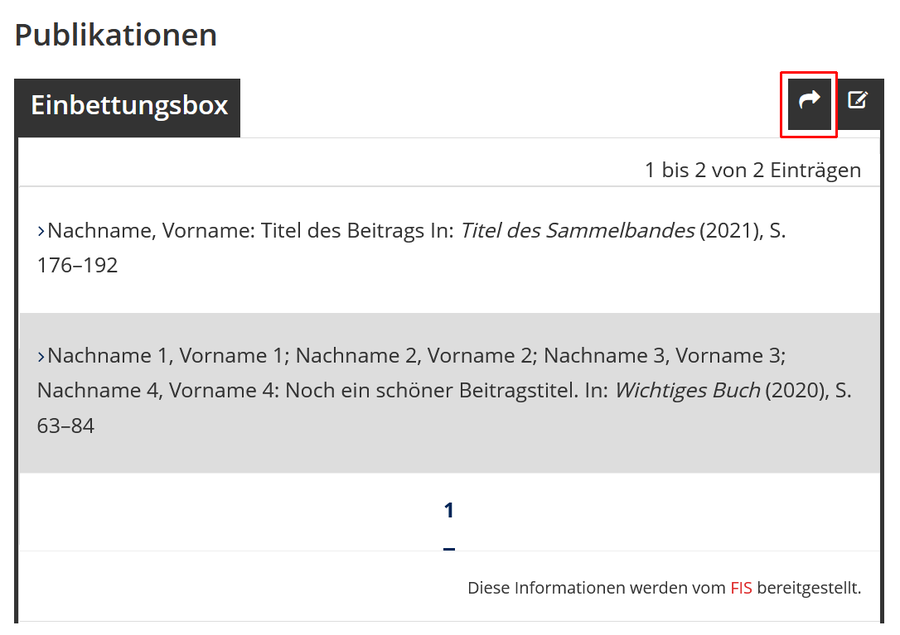
Publication list embedded from the old FIS
If you view a website while logged in, you will see an arrow button at the top of the embedded box that will lead you to the box’s preview page in the resource folder (see screenshot).
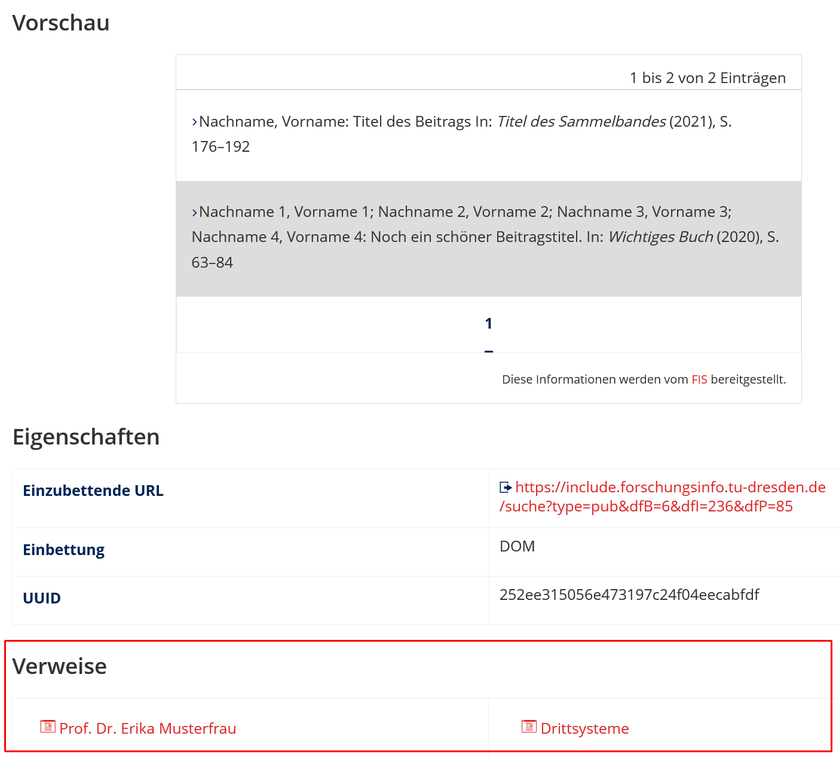
Preview page of a box including indication of the referenced content
On the preview page in the resource folder, you will see a list of links under “referenced content” that show you all the pages where your box is embedded (see screenshot).
Setting up a new FIS boxes
For each old FIS embed box that needs to be replaced, set up a new FIS box in the resource folder, as described under Setting up an FIS box.
Switching out boxes on web pages
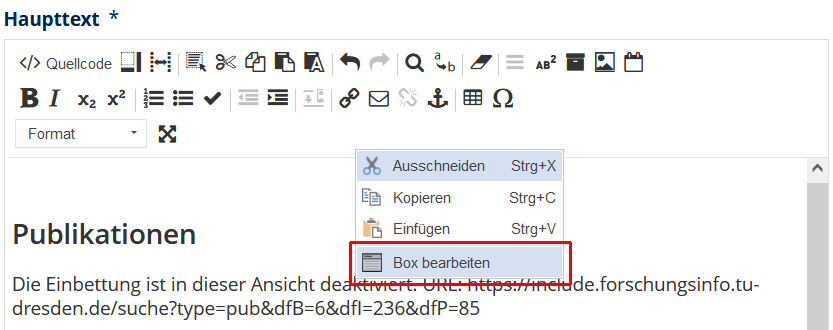
Editing box content
Open the page where you would like to switch out the embed box with the new FIS box and enter the editing mode. In the editing mode, either double click the old box or right click on it and select “edit box” (see screenshot). Click on “browse server” and then select the new box. Alternatively, you can also simply unembed the old box and insert a new one. Be sure to save the page when you are finished.
Deleting old embed boxes
Once you have unembedded an old embed box from all pages, no more referenced content will be displayed on the preview page in the resource folder. You can now delete the box, for instance via the “actions” menu.