
Editing Tips
Table of contents
On this page, we will present you with certain WebCMS functions. These introduce important elements of the WebCMS that will help you work more efficiently.
Submission of news and events to other event boards and newsboards
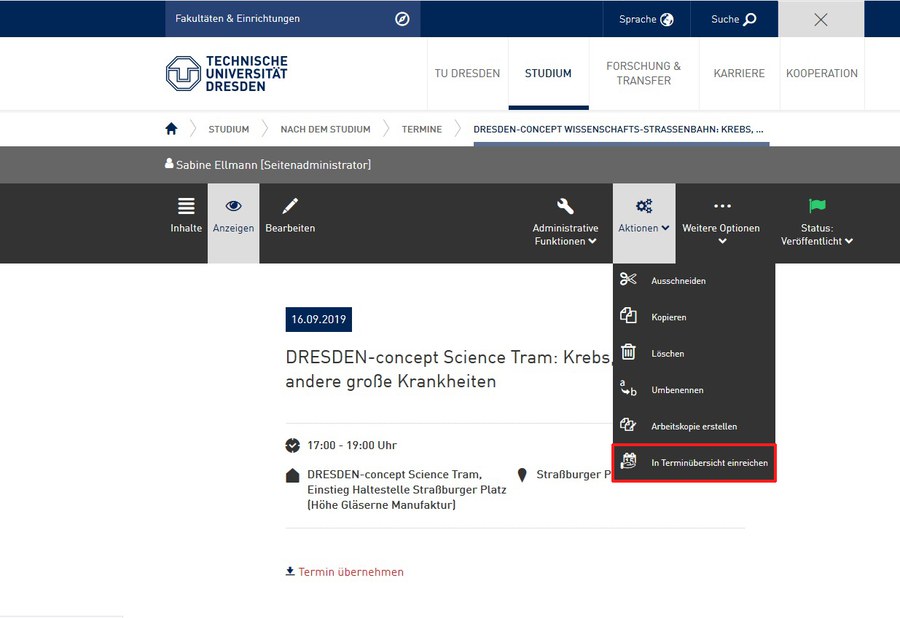
In TU Dresden’s WebCMS, you can submit events and news entries to other event boards or newsboards. Simply select “Submit to event board/newsboard” from the “Actions” dropdown menu.
You will be taken to a form where you can select the appropriate event board or newsboard. There are three options:
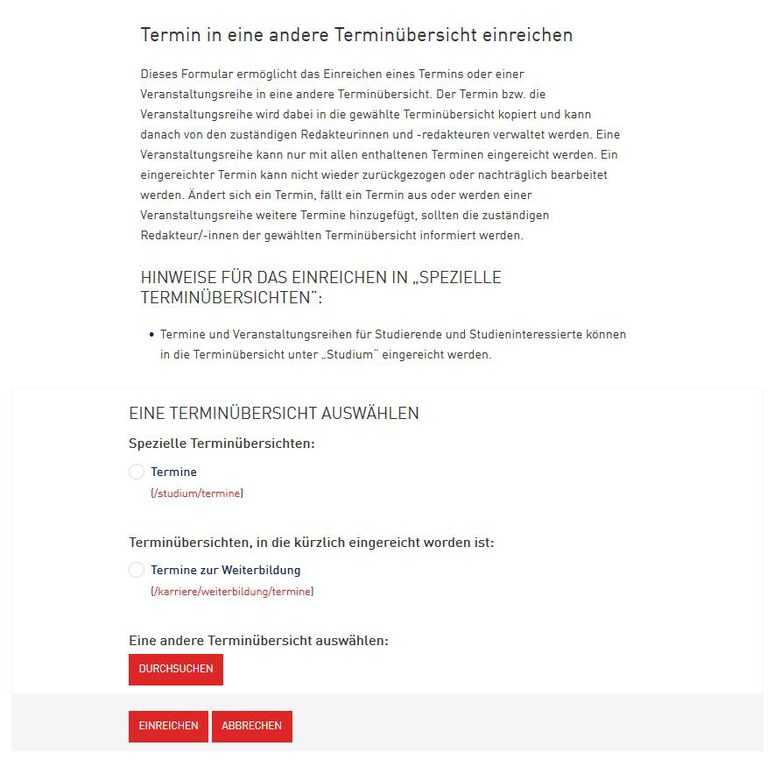
- You can submit items to preset special event boards or newsboards such as TU Dresden’s news portal or the calendar of events.
- Furthermore, you will be able to choose from recently selected boards and overview pages for submission.
- Of course, you can also submit your news or events to any other board (e.g. your School’s or Faculty’s).
Once you are finished, you will see the boards to which you have successfully made a submission under the references in the preview of your original content.
The Chief Editors of these boards can view the content you submit on their personal startpages under “Open reviews” and approve it for publication. The original source of the content can always be found via a link in the WebCMS editor under “References.”
Using footnotes
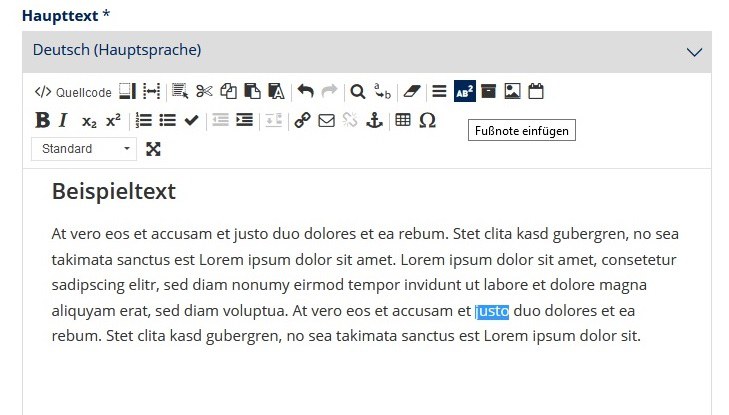
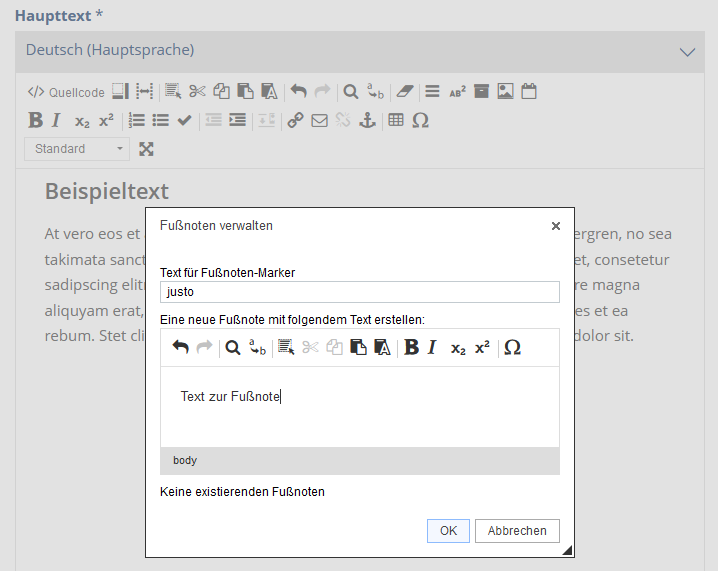
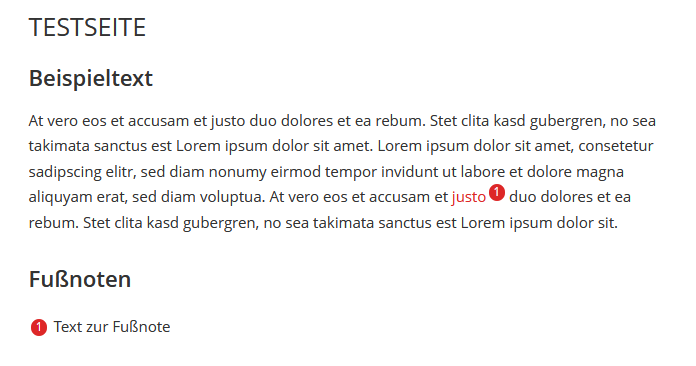
You can use footnotes in WebCMS to explain terminology or add explanatory notes to the text. Simply highlight the text in the editor that you would like to add a footnote to and click on “insert footnotes.” A separate window will open where you can insert your footnote text. Upon saving, the footnote will appear at the end of the page. Users can then jump directly to the footnote via an anchor link.
© Unit Web and Video
© Unit Web and Video
© Unit Web and Video
Renaming URLs/short names
When you copy pages or use additional main menu items, the short names “copy-of-pagename” and “joker” are generated by default. These are part of the URL and you need to modify them manually. If you create a page with a long header, it is also worth generating and modifying a short name.
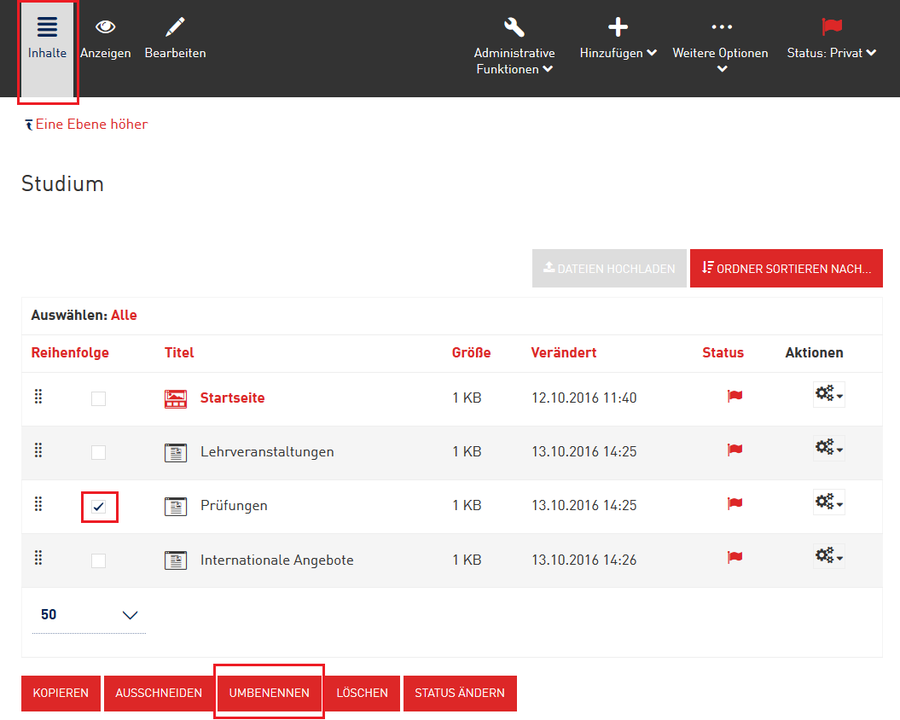
You can use the short name as a part of the URL for pages or folders in the WebCMS. For landing pages and standard pages, please note that you need to change the short name of the folder, and not the short name of the web page. You can make this modification under Contents. Click on “Contents” and then check the box next to the item in the list for which you would like to modify the URL. Then, select “rename” at the bottom of the page.
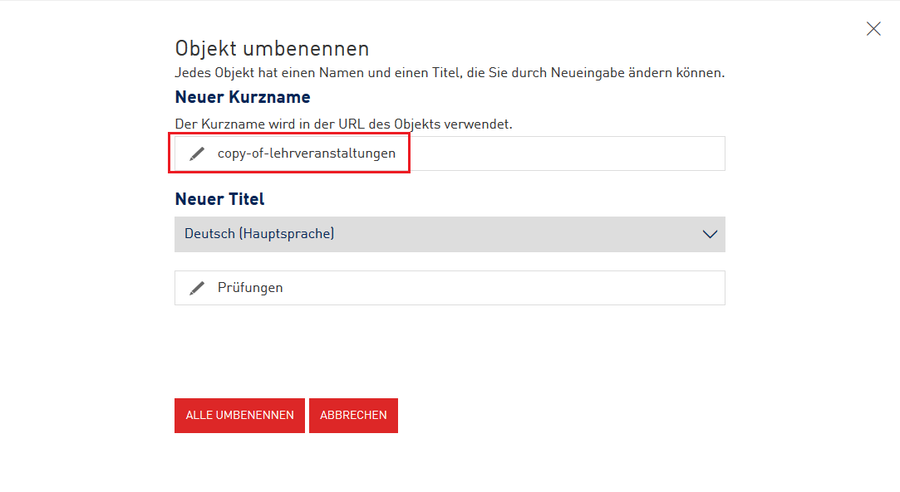
This will open a new window, where you can enter the new short name to be used in the item’s URL. As a rule, you should use lowercase letters and separate words with a hyphen—not an underscore. Diacritics such as umlauts are not supported. Click on “rename all” to complete the action.
Working with working copies
If you want to edit existing web pages, we recommend creating an unpublished working copy. Working copies are duplicates of content pages which have already been published. They can be created by clicking on “Actions” at the top of a page for which you have editing rights. This means that the existing (old) web page is still visible online while you are working. The changes you make are only available to the public once you publish the working copy.
Processes for Editors:
- As an Editor, you can create a working copy of a published content page.
- This is then set to private and you can edit it. Subsequently, you can submit your working copy for publication.
- You can also retract or delete your working copy.
Processes for Chief Editors:
- As Chief Editor, you have the same rights as an Editor for working on content pages.
- In addition, you can
- publish submitted items (the previously published page will be replaced by the submitted working copy), or
- send submitted items back to the Editor, e.g. with the request for revision.
Brief descriptions
The WebCMS has a “short description” field for all page types. Search engines use short descriptions to find your page, and this is also displayed in the search results. Plus, it is used whenever you share links on social networks. It can only be up to 200 characters long, so it should contain the page’s most relevant keywords.
If you do not include a short description, the text for search engines and social networks will be automatically generated from the page content. This often occurs randomly and without attention to context. To provide users with an optimized preview, we therefore strongly recommend including short descriptions for pages in the WebCMS. This is particularly important for very prominent pages such as landing pages, overviews and frequently linked content.
You can find more tips and suggestions for writing short descriptions on the short descriptions page.
Contact boxes
Contacts must always be displayed within a contact box. You can find more information on contact boxes on the contact details page under the information on design elements.
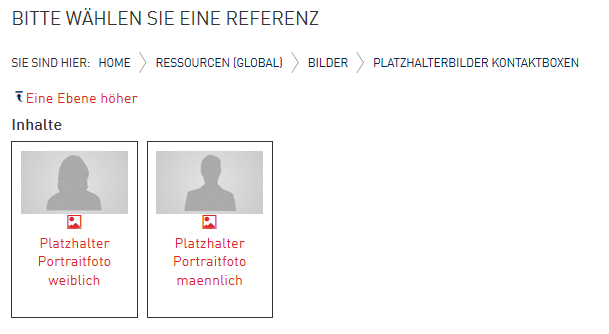
If you use contact boxes on your WebCMS web pages that don’t have portrait photos, you can insert a placeholder image. These can be found in the image folder of the global resource folder under “placeholder images for contact boxes.”
Automatically generated tables of contents
Using concise language and avoiding long text blocks keeps your page well-organized and user-friendly. It also helps to split up your content with subheadings. If you choose to go this route, you can also add a table of contents to the top of your page which is automatically populated with the subheadings, allowing users to jump to each individual section with a single click. For example, the very page you are on relies on this function. Furthermore, you can also customize your table of contents depending on how many subheading levels should be displayed. In the WebCMS, click on the location in the main text field of the editor where you would like to place the table of contents. Then, select the button “Insert table of contents.” This can be inserted anywhere above the first subheading.
Maps
Embedding the Campus Navigator
Would you like to include the location of your facility on campus? Then TU Dresden’s Campus Navigator is the right tool. Once you have found the correct building at https://navigator.tu-dresden.de/, copy the URL from your web browser’s address bar and then create an embed box in your resource folder, where you can paste this URL. You can then insert the box on content pages. You can see how this looks on our page on other systems used by TUD. You can also insert a link to the Campus Navigator in your contact boxes and events using a map link. We have included an example of this in the sample contact boxes on the contact details page under the information on design elements.
Location image
If you want to include an image showing your location on the TU Dresden campus, there are various maps in TU Dresden’s Corporate Design at your disposal.